


Black Friday: 5 quick fixes for your WooCommerce store


Copied successfully
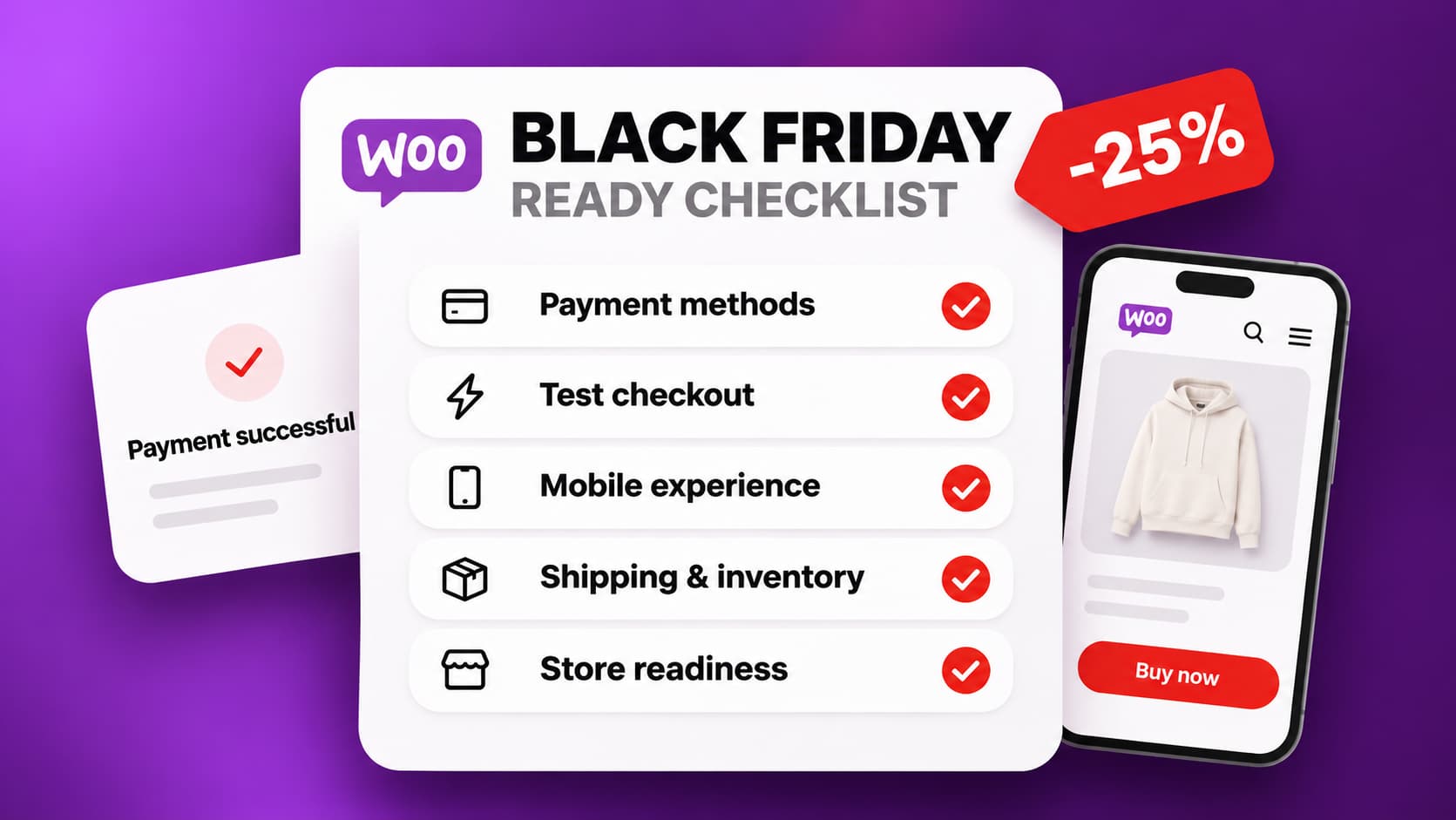
Five things you can do in your online store before the traffic arrives, and a calculator that shows what your discount costs you.
Black Friday is Friday 27 November. It is too late for big changes, but not too late to check that what you already have works. Here are five things you can do before the campaign starts. Each one takes less than an hour.
1. Update your payment integration
Updates contain bug fixes. You want them in place before the traffic arrives, not in the middle of it.
- Back up your store first.
- Update Dintero Checkout for WooCommerce under Plugins in WordPress. Update WordPress and WooCommerce too if they have pending updates.
- Check that your PHP version is supported by WordPress, WooCommerce and your plugins. Ask your hosting provider if you are not sure.
- Check two settings in WooCommerce: the number of decimals should be 2, and "Rounding at subtotal level" should be off. If the order total in WooCommerce is not exactly the same as in Dintero, the capture fails and you are not paid for the order.
2. Place a real test order
Place an order the way a customer would, with a real payment, on both mobile and desktop. Use the discount code and shipping options you have planned for the campaign.
- Are the payment methods your customers expect shown, on mobile too?
- Is the total in the checkout correct once discount and shipping are added?
- Can the customer buy without creating an account? Are there fields in the checkout you can remove?
- Does the order get the right status in WooCommerce, and is the payment in Dintero Backoffice with the same amount?
- Does the order confirmation email arrive, with the right sender and links that work?
Finish by capturing the order and refunding it, the way you normally do. Then you know that works too.
3. Test your store on mobile
Many of your customers shop on their phones. Go from the front page to a product and on to the cart on your own phone, on mobile data and not on wifi.
- Do the campaign pages load quickly? Heavy banners and product images are a common cause of slow pages. Compress the images on the pages that get the most traffic.
- Search for your best-selling products and check that they show up.
- Are the price and the buy button visible without the customer having to scroll far?
4. Update delivery, returns and stock
- State how long delivery actually takes during the campaign, even if it is longer than usual.
- Consider an extended return period until after Christmas. Many people buy Christmas gifts on Black Friday.
- Check stock levels on the campaign products. Products that are sold out but can still be bought lead to refunds and unhappy customers.
- Make your contact details easy to find, and decide who answers customers during the weekend.
5. Freeze changes and plan the weekend
In the last week before Black Friday, the store should be left alone.
- Do not install new plugins or change theme in the last week.
- Do you use a caching plugin? They can cause duplicate orders and other errors in the checkout. Exclude the files in this list from optimisation.
- Decide who keeps an eye on orders and payments through the weekend.
Do the maths before you set the discount
A discount comes straight out of your profit. The lower your margin, the more you have to sell to earn the same as before. Enter your own numbers:
Remember the pricing rules too: when you advertise an offer, the "before" price should be the lowest price the product has had in the last 30 days.
Have time for more?
- Make the offer clear on the product page, not just in the banner: before price, current price and how long the offer lasts.
- Consider abandoned cart reminders. In WooCommerce you usually need a plugin for that, so set it up now or wait until after the campaign.
- Check that tracking and analytics work. Otherwise you will not know what worked when the weekend is over.
Do you have questions about Dintero, or problems with payments? Contact us and we will help you.